
Adding Animations
The different ways to attach an animation to an object.
Turning an Edit into an Animation
Change an object's state — move, rotate, resize, drag a geometry handle, or change a parameter — and a small bar appears above it with three choices: Set Start State, Add Animation, and Revert. Click Add Animation to keep the object's original state and turn the change you just made into an animation that plays from the old state to the new one.

Set Start State and Revert are also on this same bar but don't create an animation — see Object Properties for what those two do.
The Floating Toolbar
Select an object and click Animate on the floating toolbar for a grid of ready-made animation presets: Create, Destroy, Move, Rotate Around (orbits the object around a pivot point), Rotate (orbits around a pivot while also spinning the object by that same angle), Dim In, Dim Out, Highlight, and Remove HL. Clicking one adds that animation to the object immediately, in the current step.
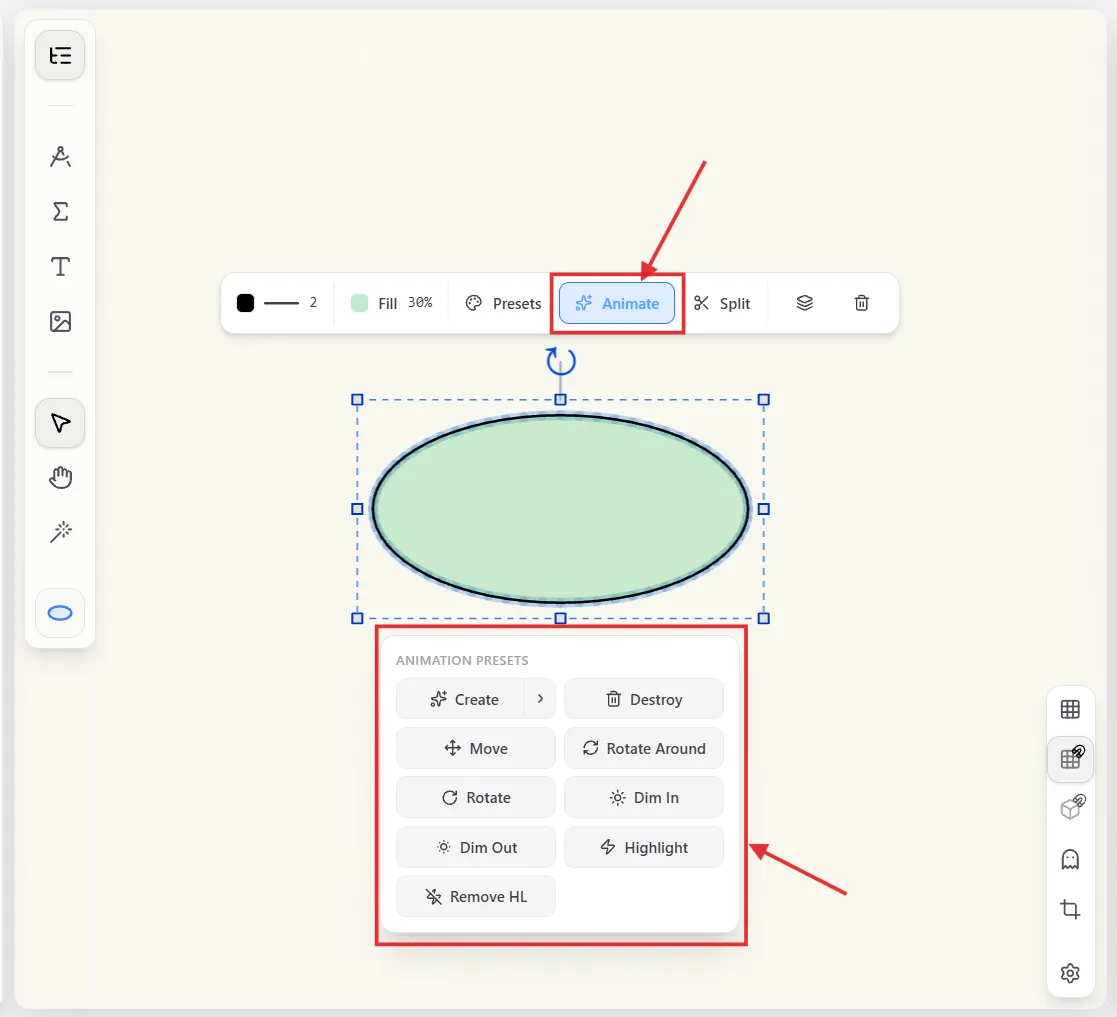
Create has extra variants — click the small arrow on the button for Fade In, Grow In, or Draw instead of the default Create.
The Magic Wand
The wand tool (next to Select and Pan in the viewport's tool row) is a fast way to add a Create animation to a whole scene of objects one at a time. Turn it on and an instruction banner appears: hover any object and it tells you whether clicking will add a Create animation to it, or that it already has one. Click to add it — the object plays a quick confirmation replay of its new animation right away, and the wand stays active so you can keep clicking through the rest of your objects without reopening anything.

Press Esc or click Done on the instruction banner to turn the wand off.
Ghosts
Turn on Ghosts (the ghost icon in the viewport controls) to see a faint preview of where an animated object will end up once its current step's animation finishes, connected to its starting position by a dashed path — useful for judging a Move (or similar) animation without scrubbing or playing to see the result.
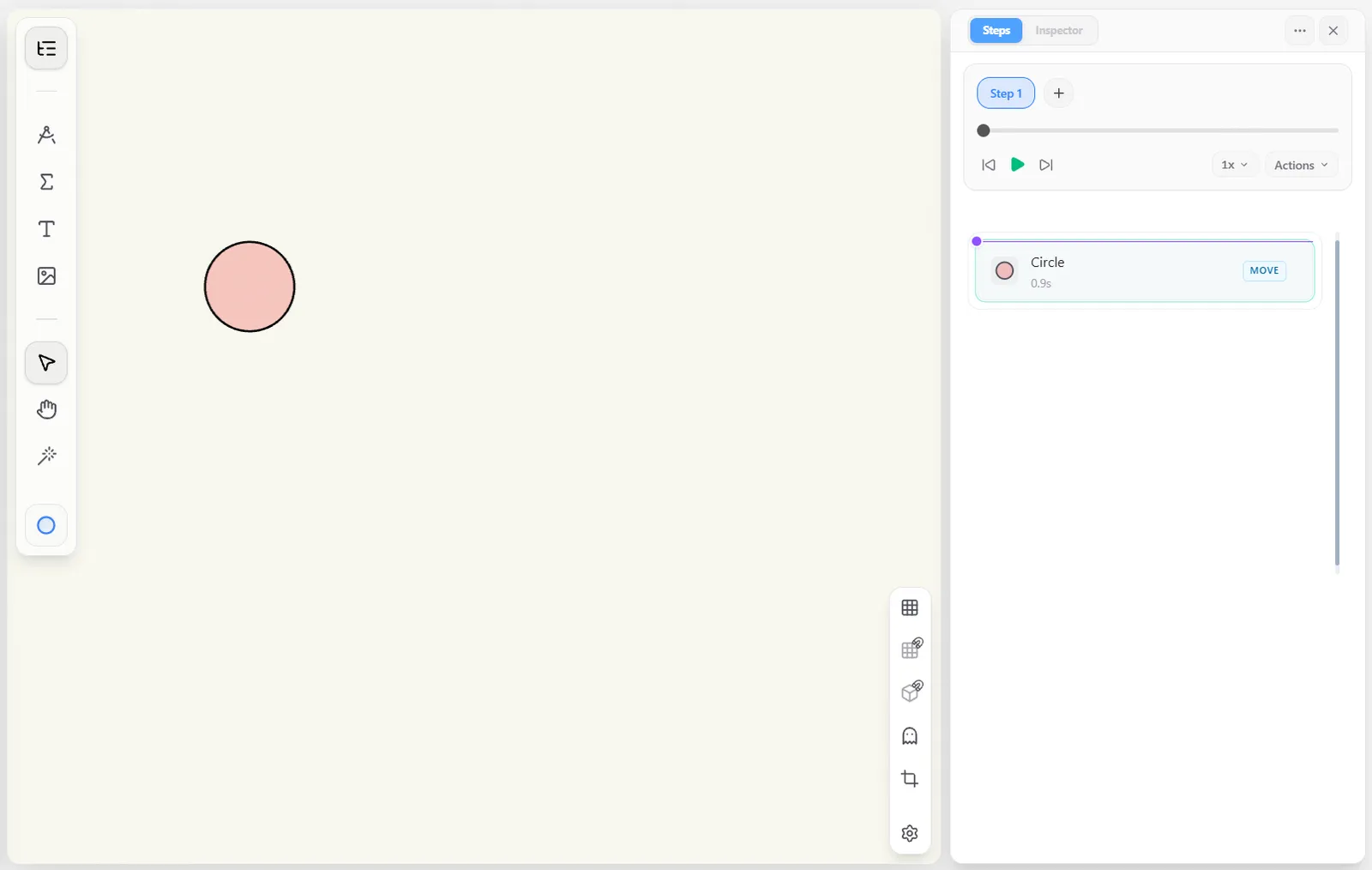
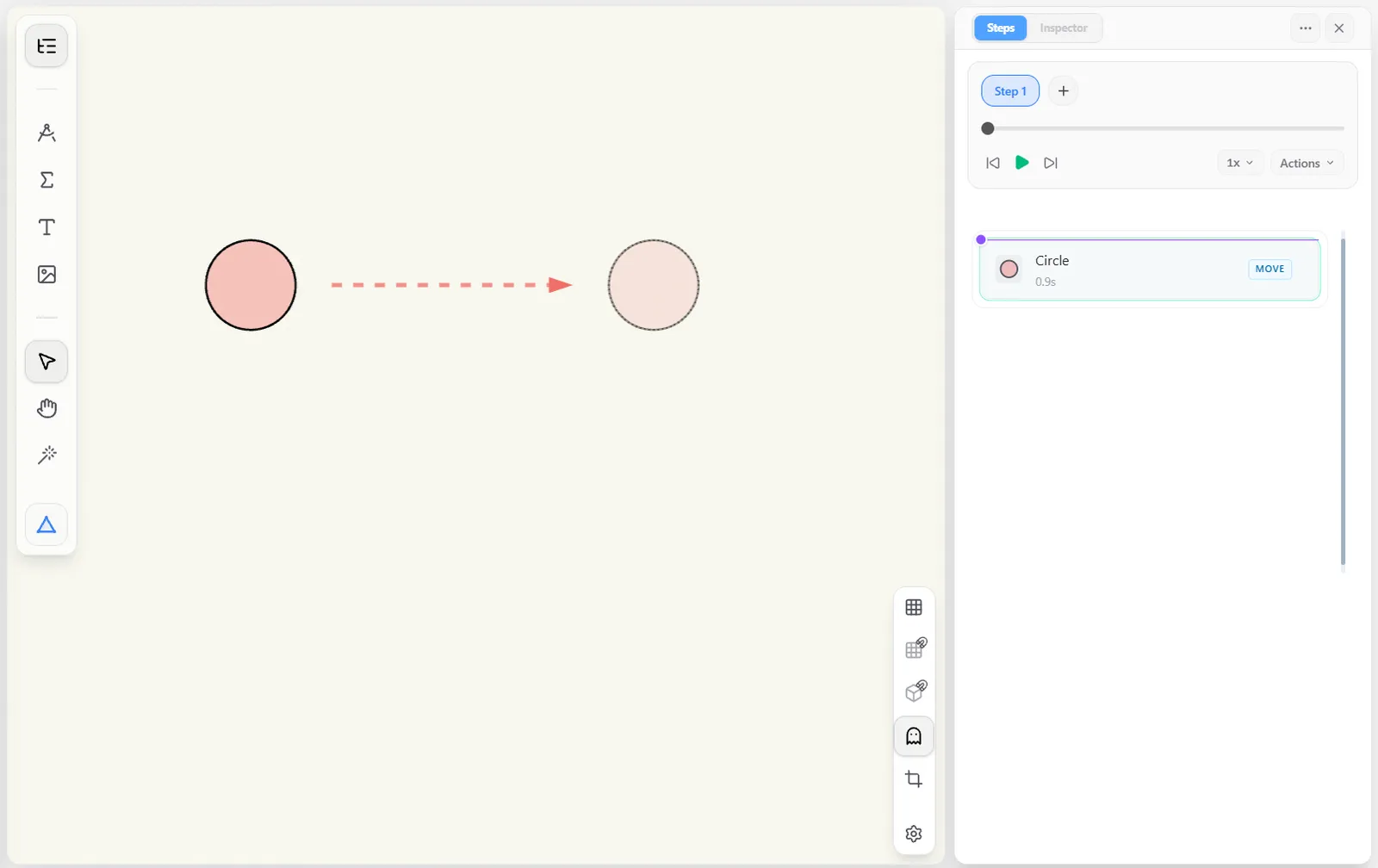
Ghosts are shown for every animated object at once — it isn't a per-object setting, and there's no keyboard shortcut for it.