
Animation Blocks
Fine-grained control over the animations inside a step. Each animation you add — whether from directly editing the object, the floating toolbar, or the magic wand — shows up as its own block in the Steps panel, and every block has a small ... button opening a menu of further options.
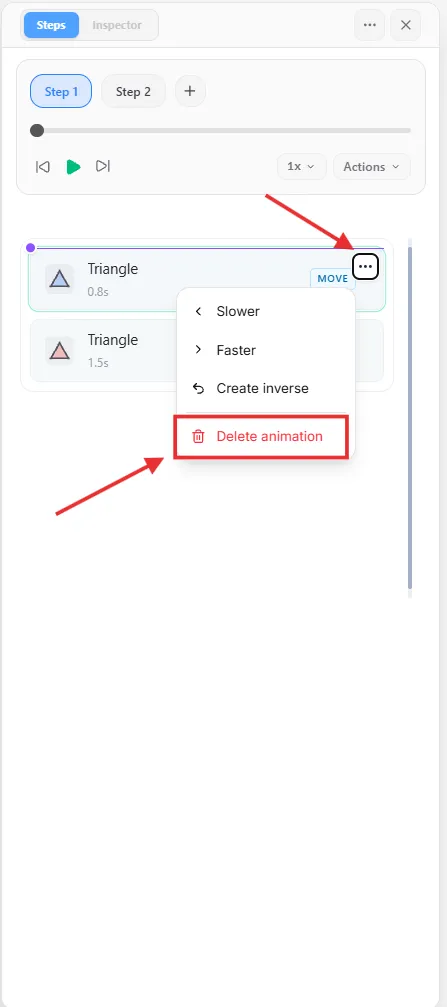
Deleting a Block
Click the block's ... button and choose Delete animation to remove it from the step.
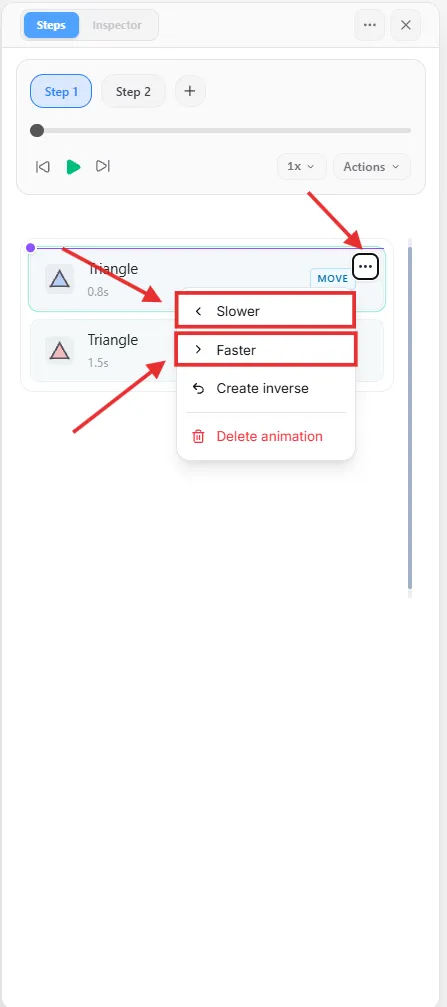
Making a Block Faster or Slower
Click the block's ... button and choose Slower or Faster — each click nudges its playback speed down or up in small steps.
Rearranging Blocks

Drag a block by its card to reorder it within its lane — blocks in the same lane play one after another, in the order they're listed, so dragging one earlier or later changes when it plays relative to the others.

Running Animations Together
Drag one block on top of another to bundle them into the same slot — once bundled, both play at the same time instead of one after the other. This is the quickest way to make two animations run together without setting up a separate lane for them.
Creating a New Sequence
Drag a block onto the new sequence drop zone at the edge of the track list instead of onto another block, and it's placed in its own parallel lane — labeled Seq A, Seq B, and so on. Every lane in a step plays in parallel with the others, but each keeps its own internal order, so you can rearrange blocks within one lane without disturbing the rest.
Moving a Block to Another Step

Drag a block's card up onto a different step pill in the row above the track list to move that animation into that step entirely.