
Explaining Tools
Tools for narrating and navigating the canvas while explaining.
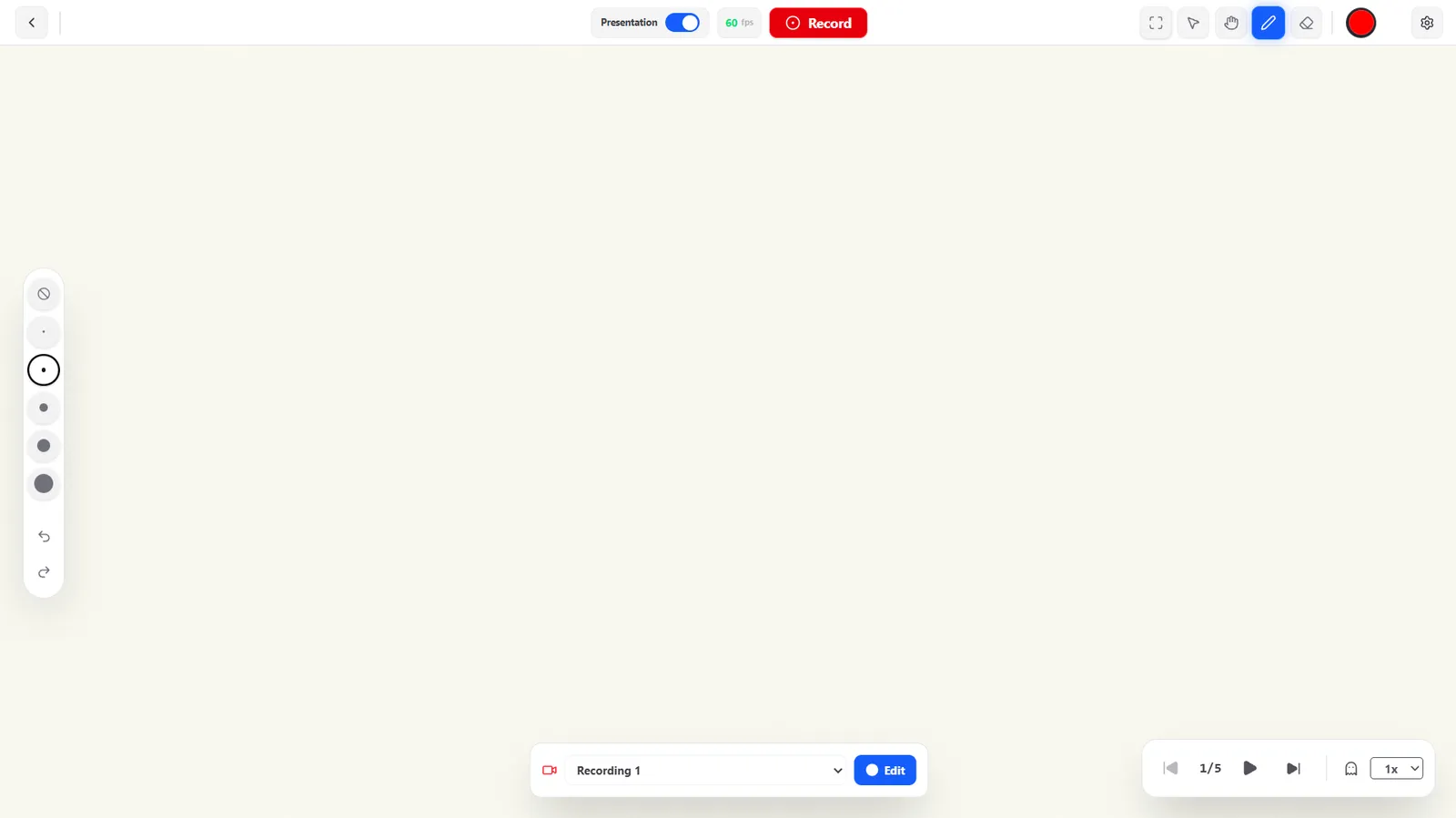
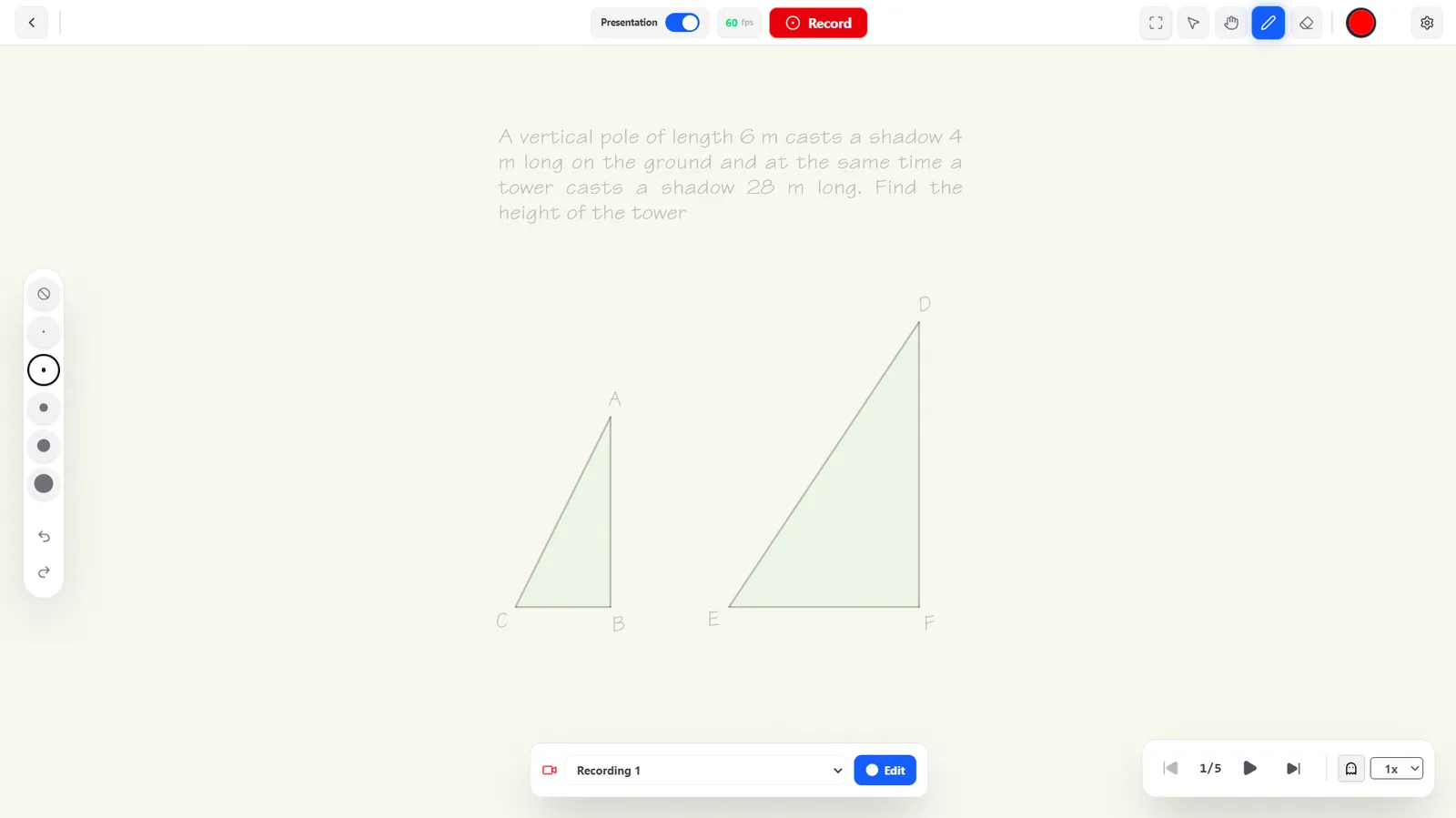
Ghosts (Preview the Current Step)
Click the ghost icon next to the speed selector to see what will play during the current step before you play it.
The Cursor / Pointer Tool
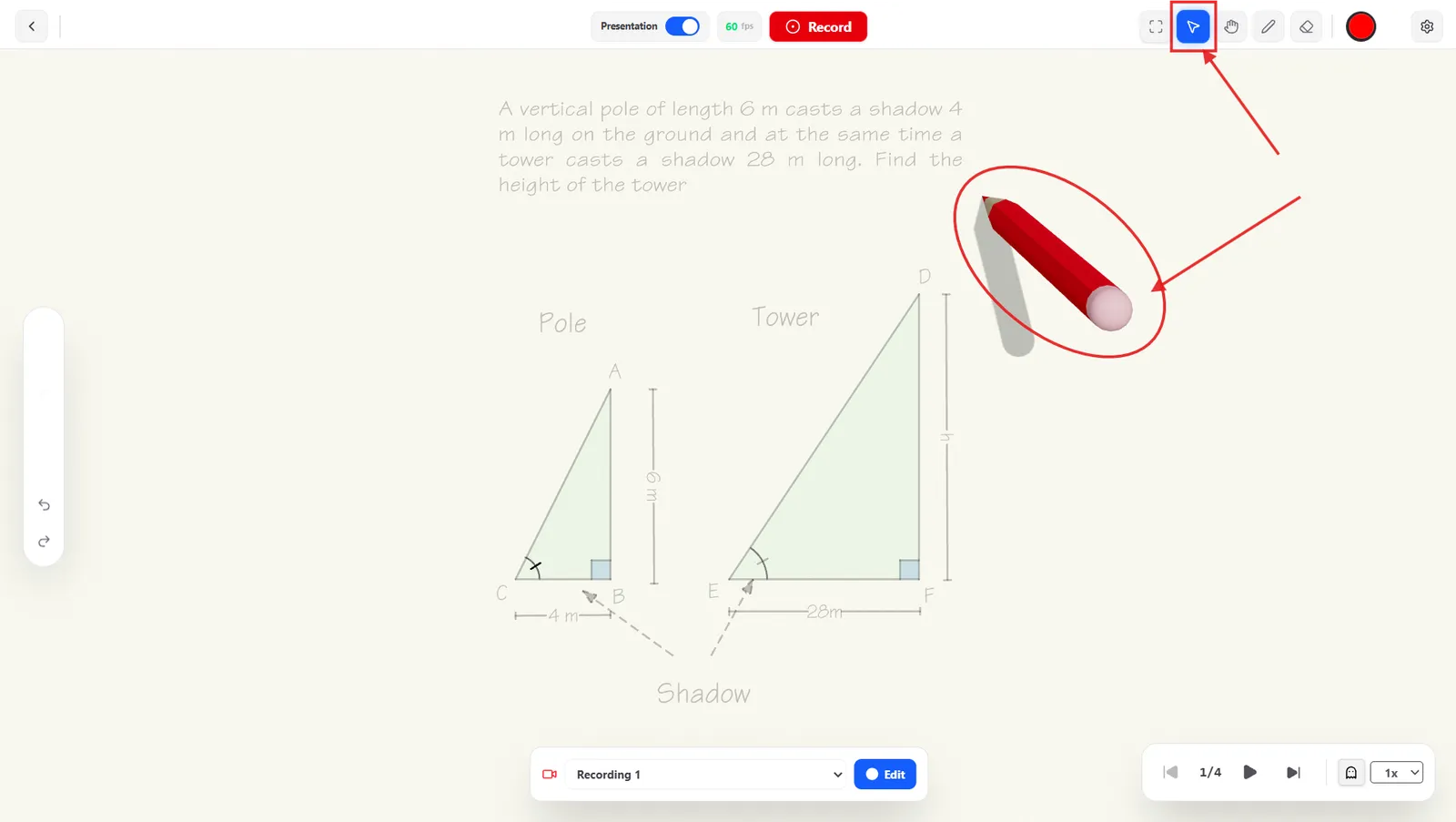
Click the arrow icon in the header to switch back to a plain cursor — use this to point at objects while explaining without drawing on the canvas.
Zoom (Ctrl + Scroll)
Hold Ctrl (Cmd on Mac) and scroll to zoom in or out, centered on wherever your cursor is.
Scrolling

Vertical: scroll. Horizontal: Shift + scroll.
Panning (Middle Mouse Button)

Hold the middle mouse button and drag to pan the canvas.