
Object Interaction
Selecting, organizing, and managing objects already in the scene.
The Scene Tree
Open the Scene Tree from the panel toggle in the header for a hierarchical list of everything in the scene — nested to match the actual parent/child structure, so a shape's child points or labels sit indented underneath it. The All Objects dropdown at the top filters the list by object type. Clicking a row selects that object, the same as clicking it directly in the viewport.
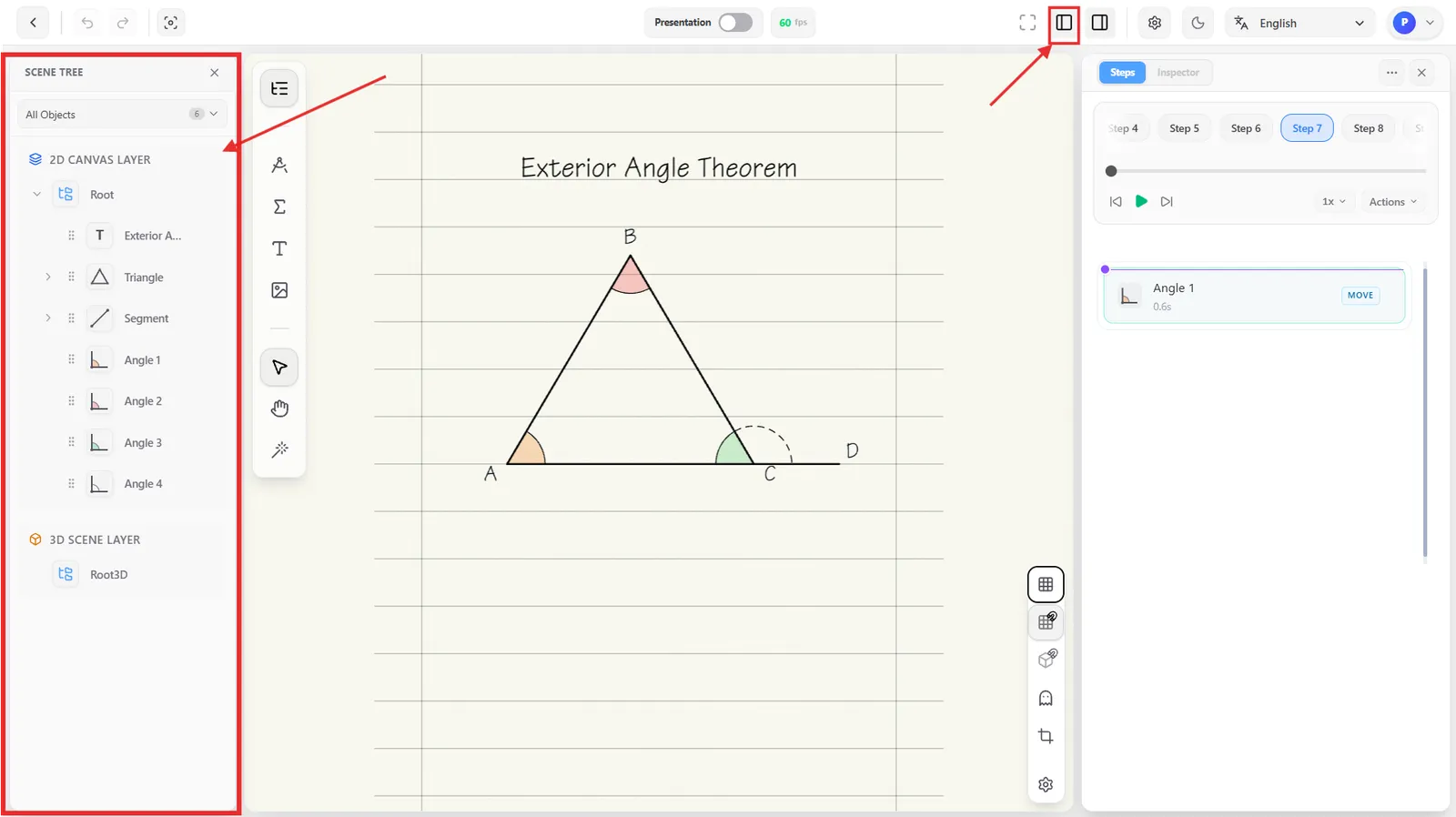
Hover a row for three quick actions: toggle visibility, Duplicate (Ctrl/Cmd+D), and Delete.
Select on Canvas

Click an object directly in the viewport to select it — this is the same selection as clicking its row in the Scene Tree, just from the other direction. Hovering an object first shows a preview outline of exactly what you're about to select, which matters when shapes overlap or sit close together.
Hiding Objects
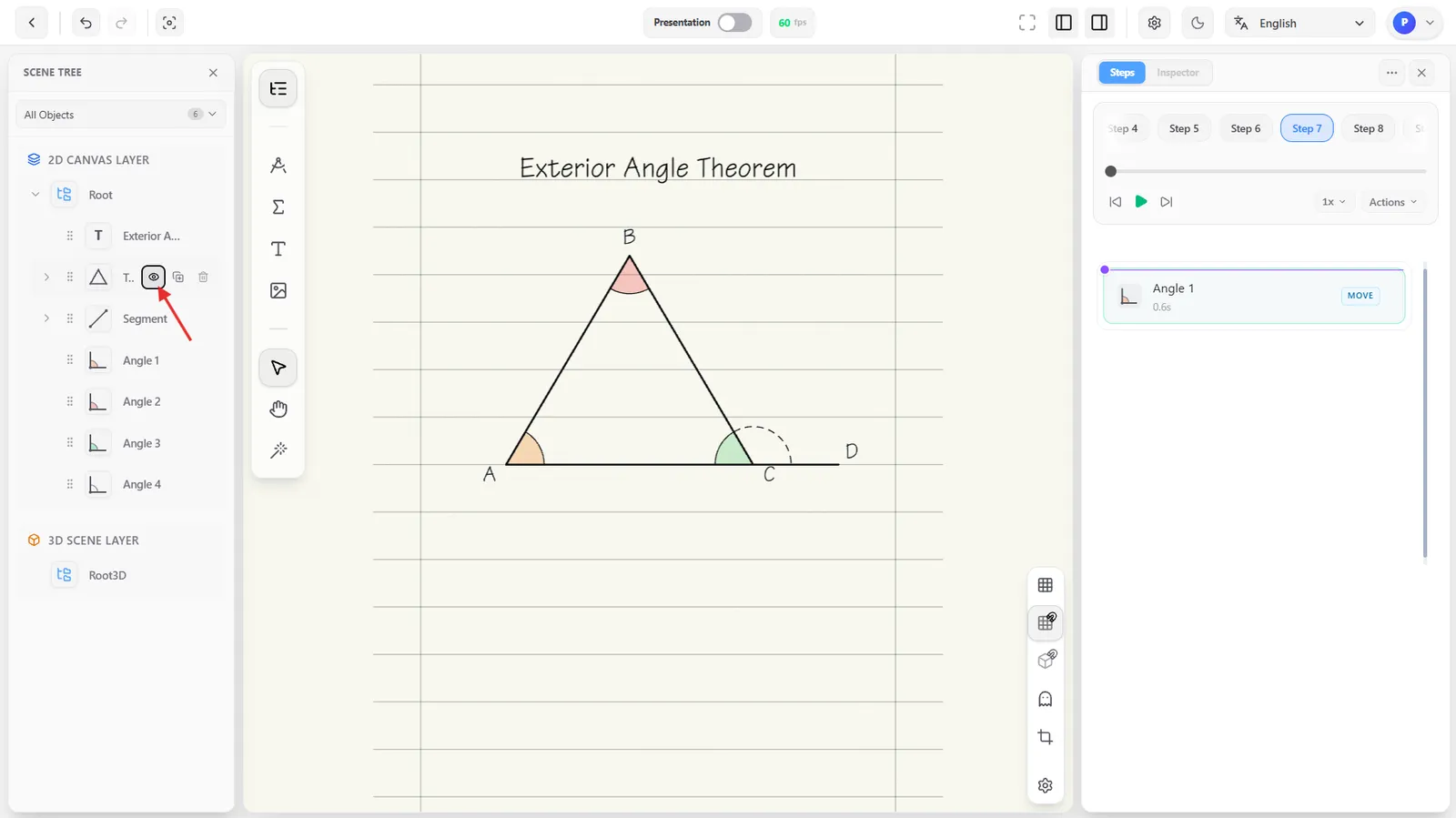
Hover a row in the Scene Tree and click the eye icon to hide that object from the canvas without deleting it — click it again to bring it back.
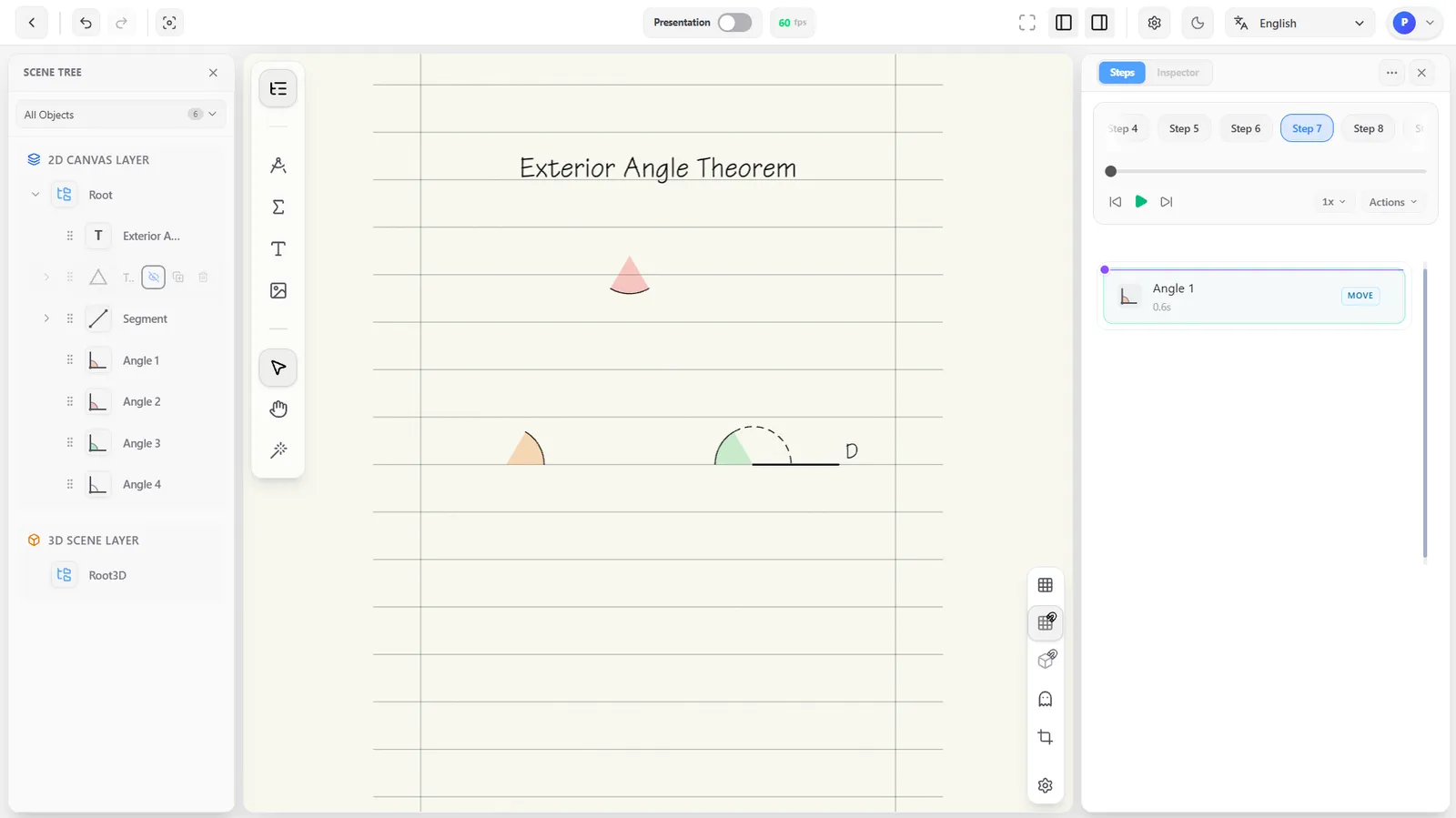
A hidden object's row keeps its icons visible even when you're not hovering it, so it stays easy to find and show again later.