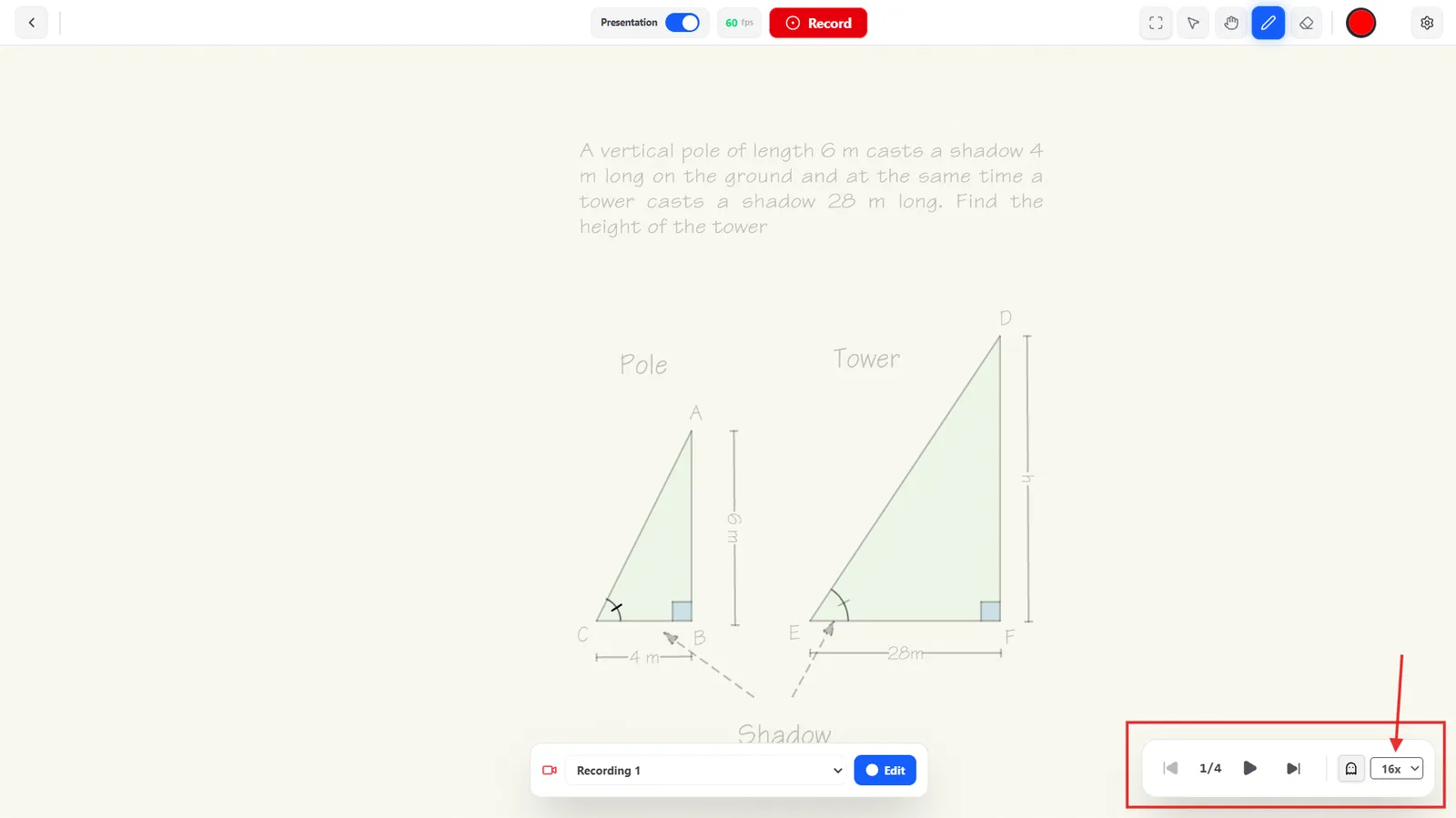
Playback & Navigation
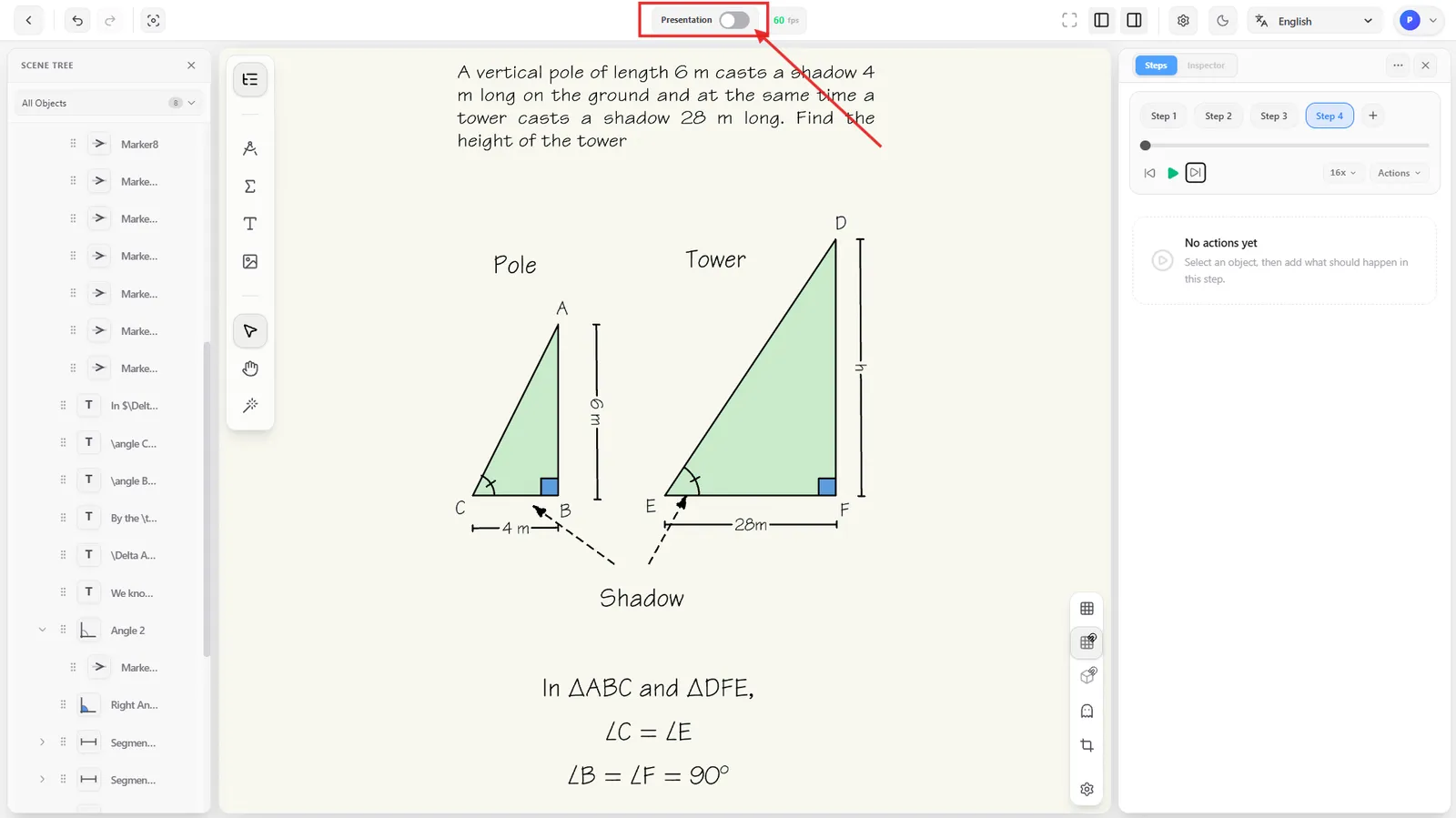
Playing back, in Explanar, the lesson you built in the Editor. Flip the Presentation toggle in the header to leave the Editor and enter Explanar.
Once you're in, a floating control bar in the bottom-right handles playback.
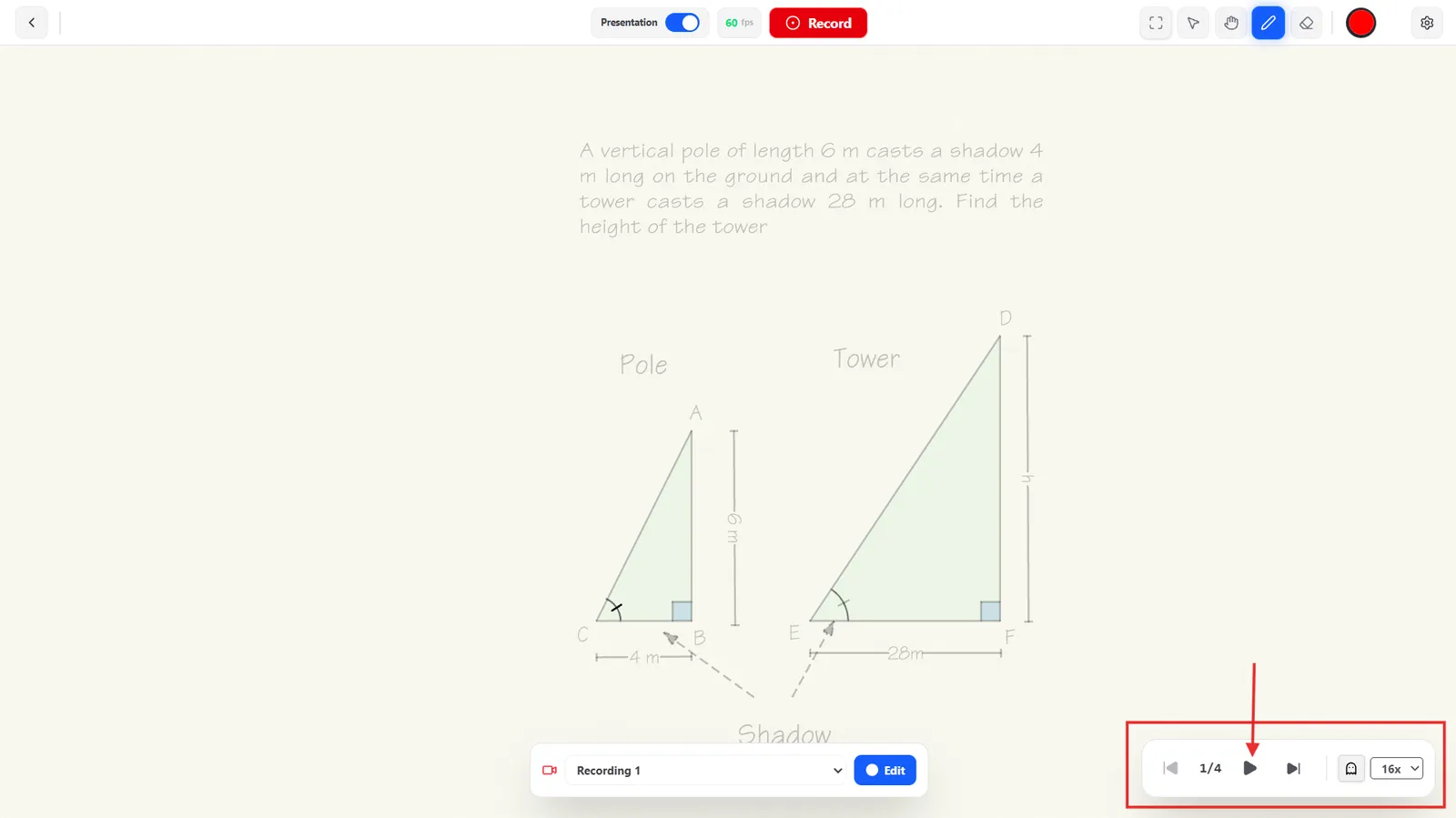
Playing the Current Step
Click Play to play the current step's animations in order.
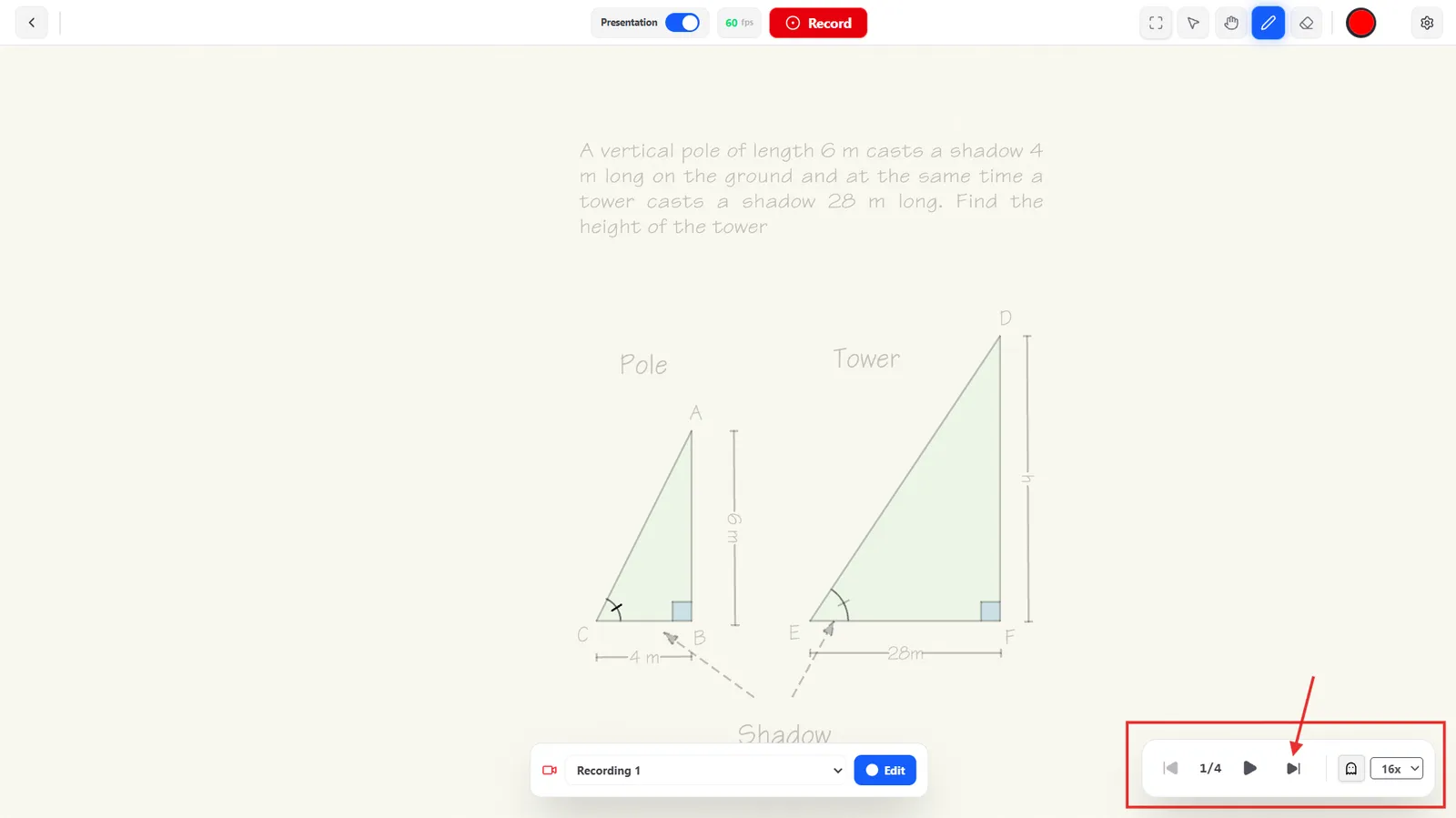
Next / Previous Step
The skip-back and skip-forward buttons move to the previous or next step; the counter next to them (e.g. "1/4") shows where you are in the sequence.
Playing Fast or Slow
The speed selector next to the playback controls works the same as in the Editor — 0.5x, 1x, 1.5x, 2x, 4x, 8x, or 16x.