Steps
What Are Steps?
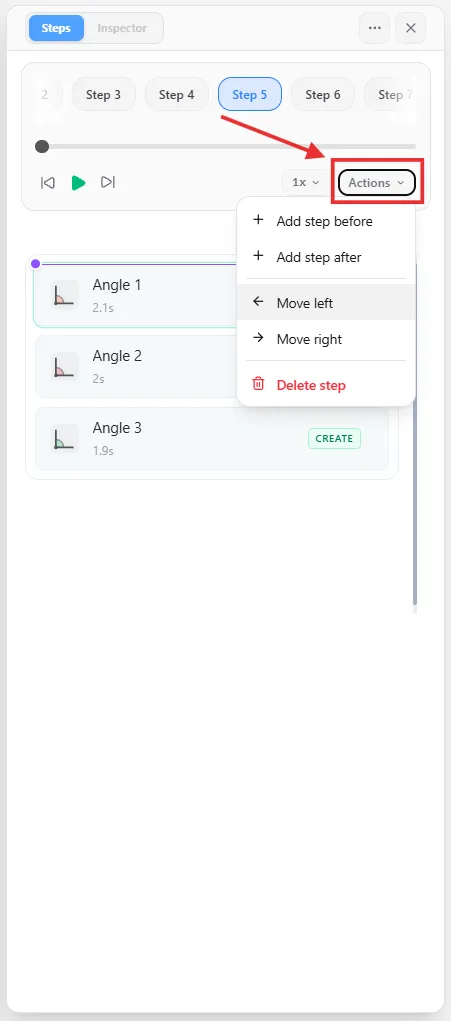
A step is a self-contained beat of your explanation — its own small group of animations that play together, one step at a time. Instead of choreographing one long continuous timeline, you build a lesson as a sequence of steps, and presenting it in Explanar means playing through them in order, one beat at a time.
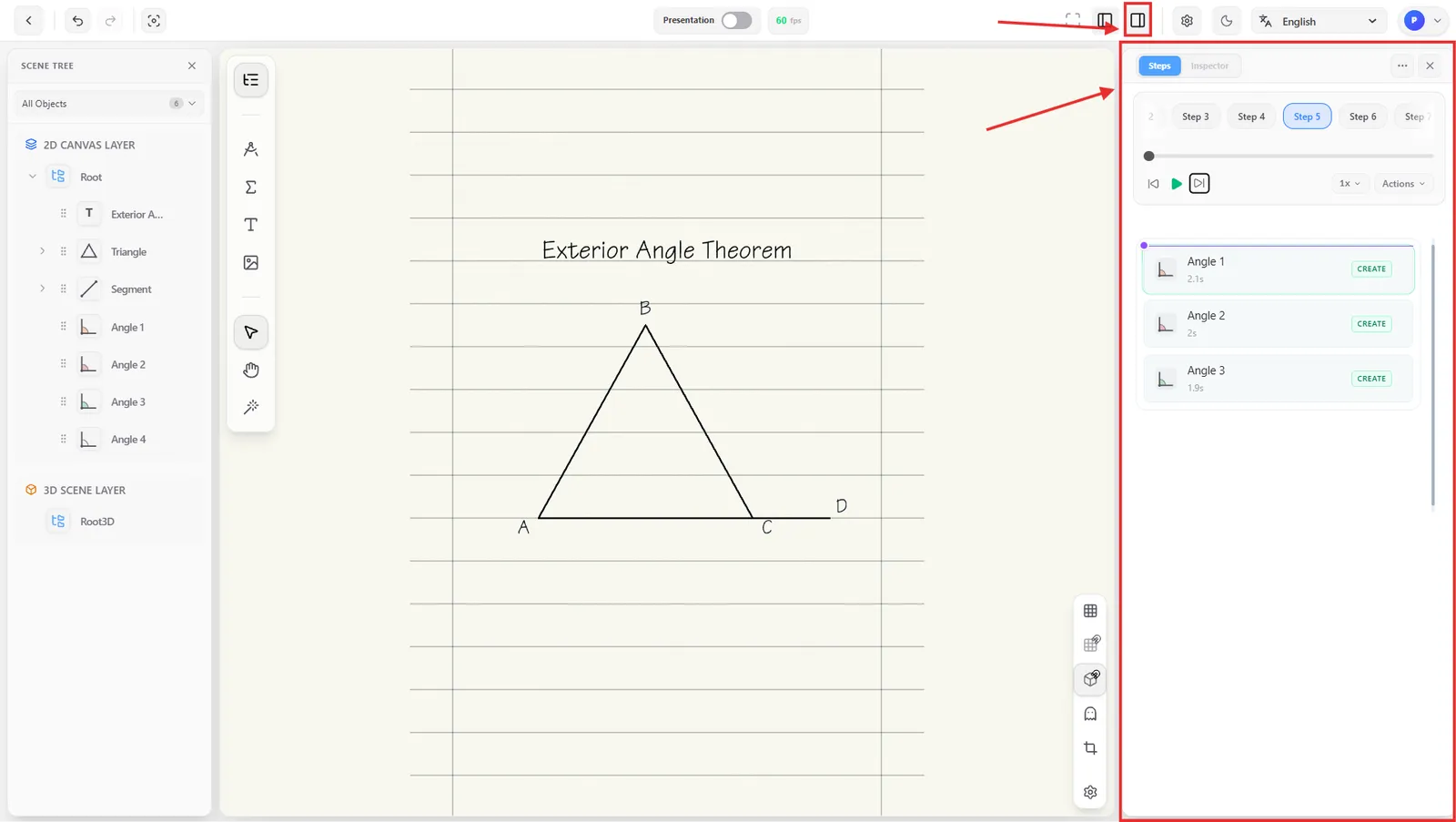
Open the Steps panel from the right dock to see and manage them.
Adding a Step
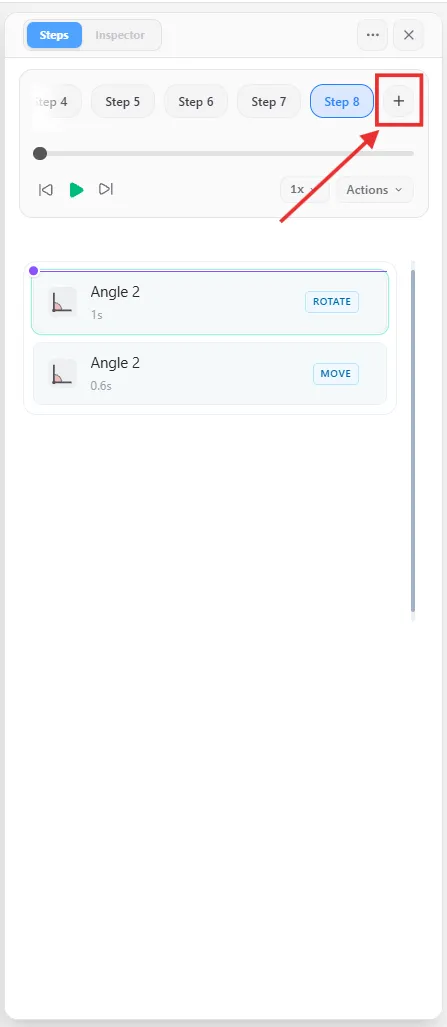
Click the + button at the end of the step pill row to add a new, empty step after the last one.
Navigating Between Steps
- Click any step pill to jump straight to the start of that step.
- Use the Previous Step / Next Step buttons to move one step at a time relative to where you are.
- The Play button plays through the current step's animations in order; once it reaches the end it turns into a Replay button.
- Drag the playhead along the scrubber below the pills to scrub through the current step's timing without leaving it.
- The speed selector (1x by default) controls playback speed for both the Play button and scrubbing.
Reordering Steps
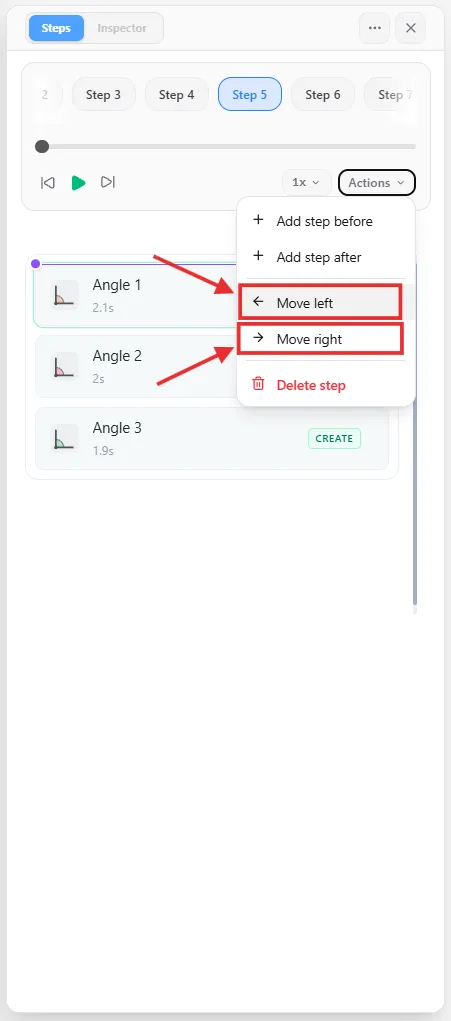
Open the Actions menu for the currently selected step and choose Move left or Move right to swap it with its neighbor. Move left is unavailable on the first step, and Move right is unavailable on the last.
Deleting Steps
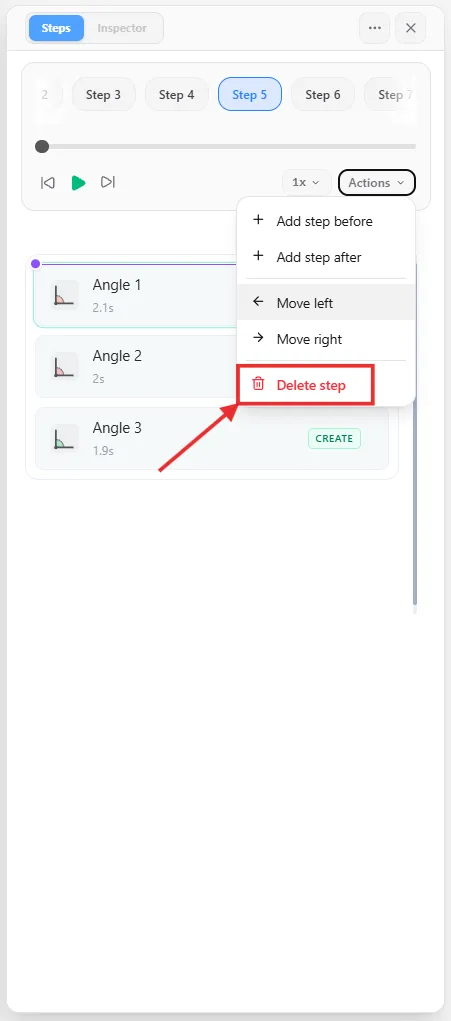
Open the Actions menu and choose Delete step. This option is hidden when only one step remains — an explanation always needs at least one.
Inserting a Step In Between
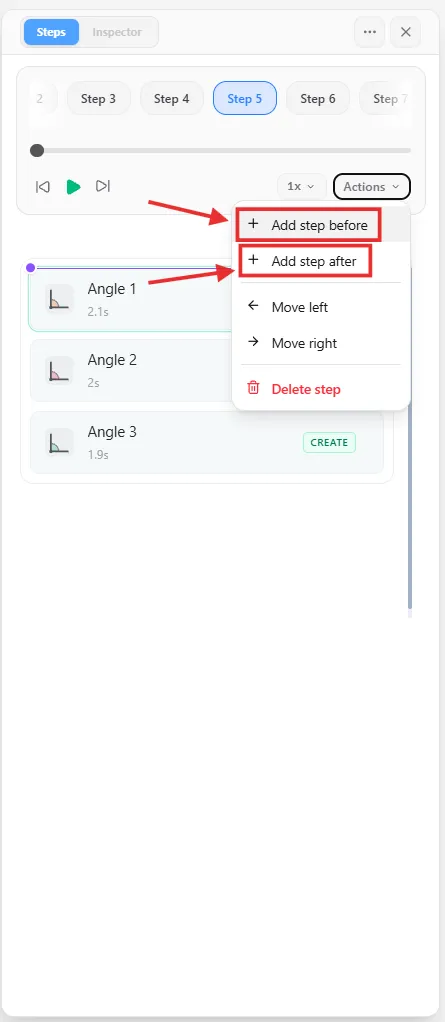
Open the Actions menu and choose Add step before or Add step after to insert a new, empty step next to the one you're on — unlike the + button at the end of the row, this lets you insert in the middle of the sequence.
Splitting a Step
Unlike inserting an empty step, Split step divides a step that already has animations in it. Drag the playhead to a point in the step where some animations end before it and some start after, and a Split step button appears right on the playhead — click it to break the step into two at that exact point, with the earlier animations staying in the original step and the later ones moving into a new one right after it.
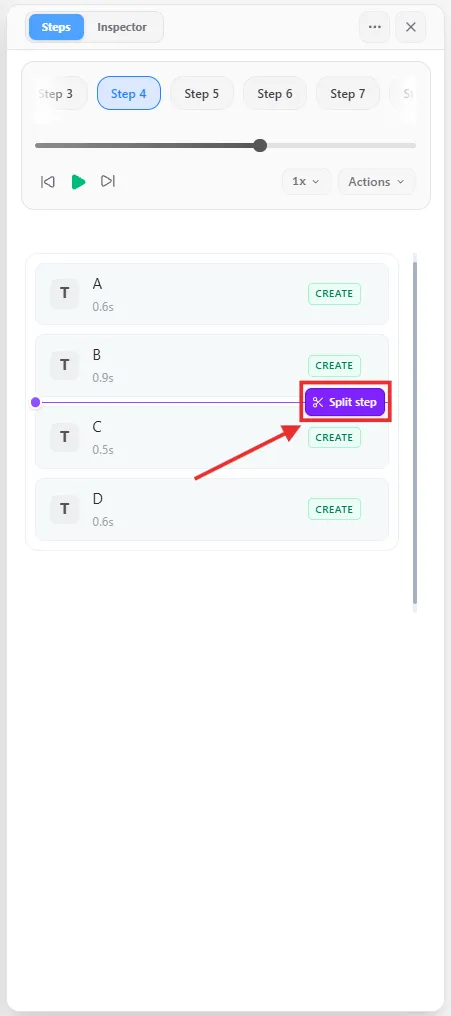
Split step only appears when the playhead sits between two animations — not before the first or after the last, and not if everything in the step falls entirely on one side of it.
The Actions Menu
Next to the speed selector, the Actions menu gathers everything above into one place for whichever step is currently selected: Add step before, Add step after, Move left, Move right, and Delete step.